- Product

- Pricing
- Affiliate Program
- Developers
- Resource
 EN
EN
Finding the best Android emulator for PC is harder than it should be. Most lists repeat the same names, but users are not all looking for the same thing.
A gamer wants smooth controls. A developer wants test coverage. A team managing mobile workflows needs stable Android environments that do not crash when one PC runs out of memory.
This guide compares five different choices for five different types of PC users.
The short version is simple. MoreLogin is for people who need Android environments for real work, not just one app window. MSI App Player is closer to a classic PC gaming emulator. Google Play Games for PC is the cleanest route if your game is supported. Anbox Cloud is built for companies and technical teams. Bliss OS is for users who want Android to feel like a full desktop system.
MoreLogin Android Emulator is not a traditional local emulator. That is the first thing to understand.
Most Android emulators run directly on your PC. They use your CPU, RAM, graphics card, and storage. That works fine for one app or one game. It gets messy when you need many Android environments, different accounts, longer sessions, or team access.
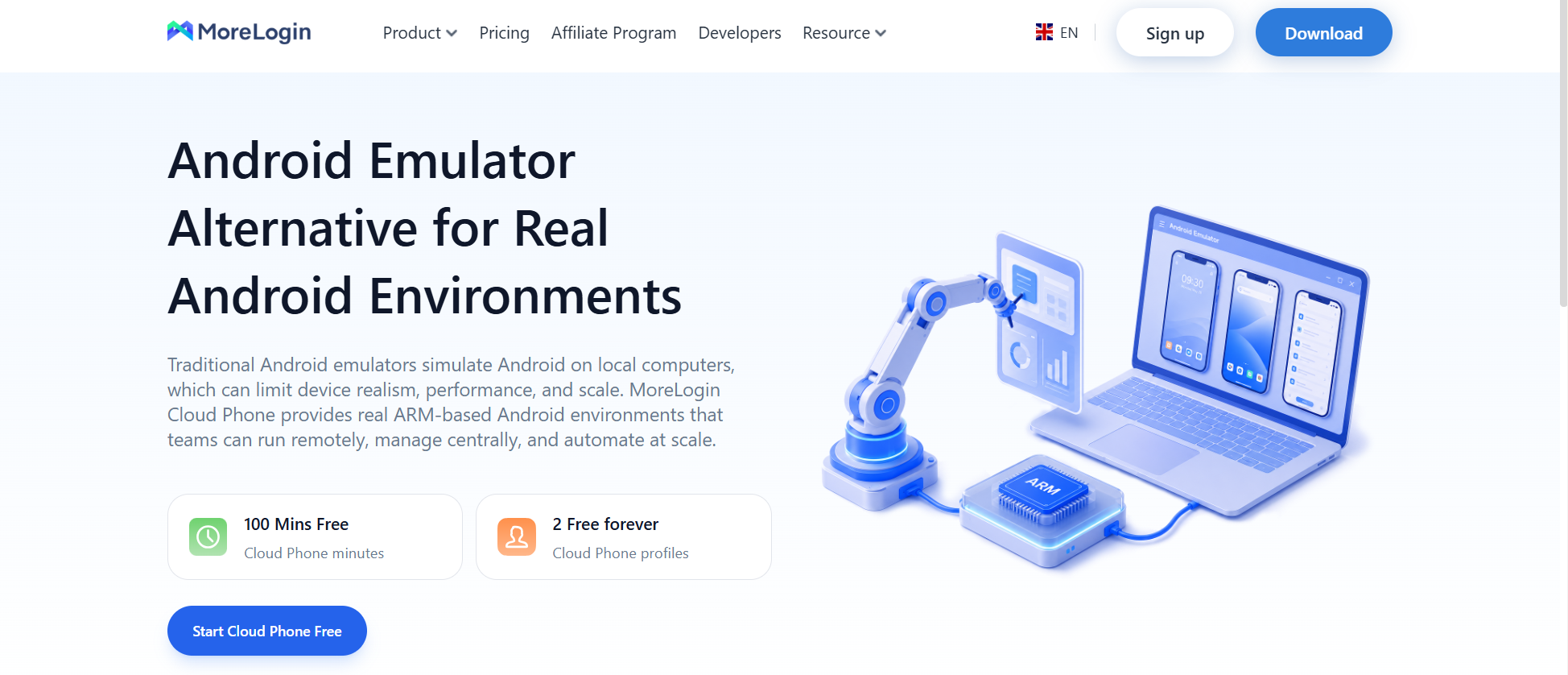
MoreLogin takes a different route. Its Cloud Phone gives users remote Android environments based on ARM infrastructure. You open and manage those environments from your computer, but the Android workload does not sit entirely on your local machine.
That difference matters for users who do repeated mobile work. I would not put MoreLogin in the same bucket as a gaming emulator. It is better seen as an Android emulator alternative for account workflows, cloud Android access, and organized mobile operations.
Reduces local hardware pressure because Android environments run remotely.
Helps users manage several Android environments without opening many local emulator windows.
Supports separate cloud phone environments for different accounts, projects, regions, or clients.
Makes team access easier because members can work from the same platform.
Supports synchronized actions, RPA, API access, CLI, MCP, SKILL, code, and AI Agent workflows.
Works better for repeated mobile operations than temporary local emulator sessions.
Not the first choice for casual mobile gaming.
Requires a stable internet connection.
It is closer to a cloud Android environment than a classic PC game emulator.
Multi-account Android workflows.
Social media operations.
Ecommerce tasks.
Affiliate work.
Mobile app workflow teams.
Content teams that need repeated Android sessions.
Remote teams that need persistent Android environments.
MoreLogin is a strong choice when someone searches for the best Android emulator for PC but actually needs something more stable and scalable than a local app player.
MSI App Player is the most familiar option on this list for mobile gamers. It is built through MSI’s partnership with BlueStacks, so the base experience feels close to a BlueStacks-style emulator, with wide compatibility and access to most apps through the Google Play Store.
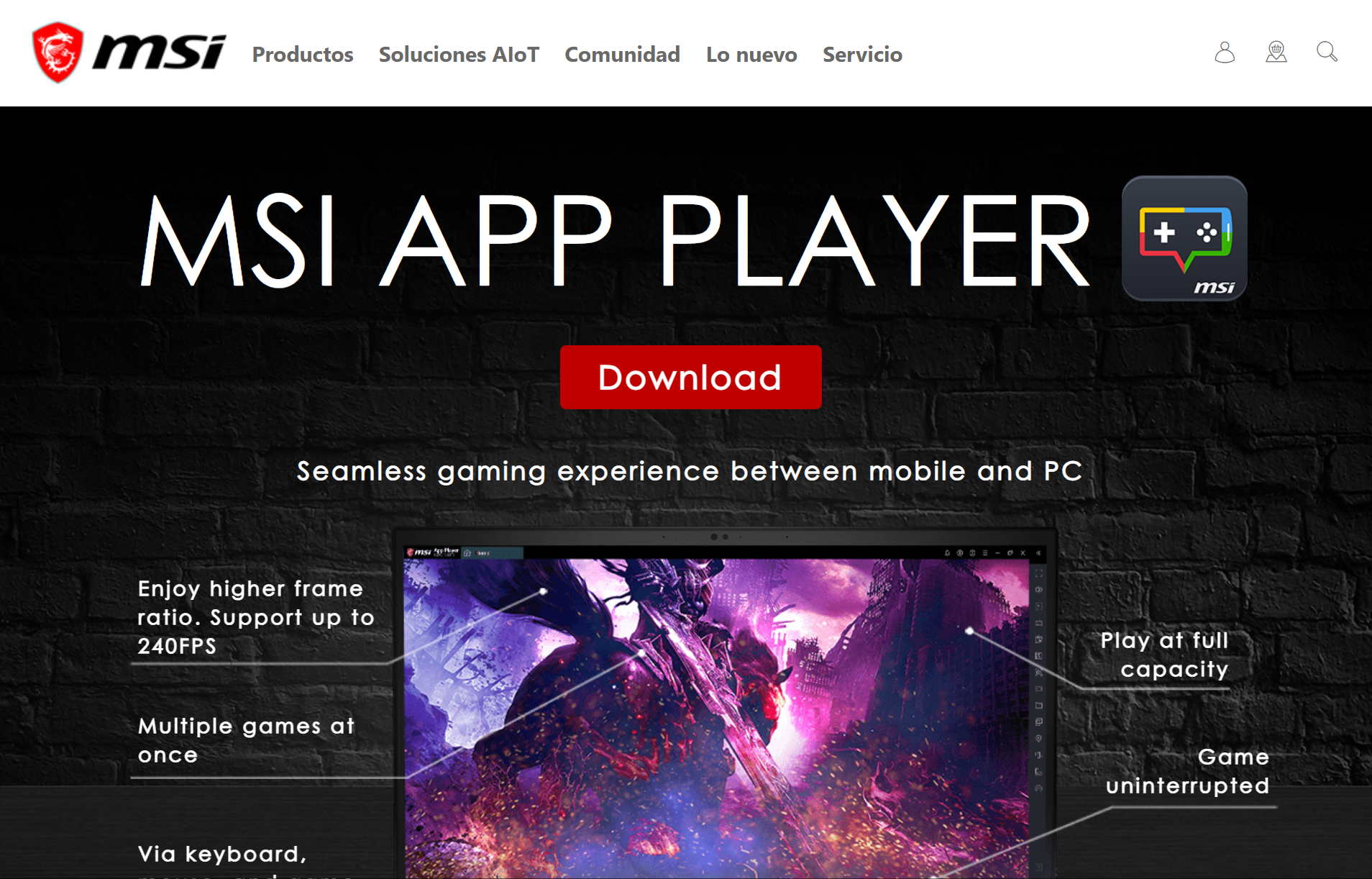
That is not a bad thing. Many people do not want a complex cloud platform. They want to install apps and play mobile games on a PC with a keyboard, mouse, or controller. MSI App Player fits that need, especially for different games.
Its value is straightforward. It gives users a gaming-focused Android emulator with high FPS support, multi-instance options, and additional features like key mapping and screen recording, along with better integration with MSI gaming hardware.
As with other emulators, some app players also surface popular games and sponsored placements in the interface.
Offers a familiar, user-friendly Android gaming emulator experience.
Supports keyboard, mouse, and game controller input.
Supports high frame rate gameplay, depending on the device and game.
Includes support for running multiple instances so you can use more than one game or app session.
Uses a mature BlueStacks-based foundation.
Offers extra value for some MSI laptop users through hardware-related features; while tools like MEmu Play may highlight a roughly 6-7 second boot time and LDPlayer is often noted for good compatibility across various games on low-end hardware, MSI’s appeal is its MSI integration and familiar BlueStacks base.
Still runs locally, so it depends on your CPU, RAM, GPU, storage, and available system resources.
Can feel heavy on older or low-spec PCs, with possible performance issues on aging hardware.
MSI recommends at least 8GB RAM, and stronger hardware can deliver better performance and help games run smoothly.
Not designed for professional account isolation.
Not built for proxy workflows, team permissions, or cloud automation.
Multi-instance gaming is not the same as structured multi-account management.
PC gamers who want a traditional Android gaming emulator.
Users who like a BlueStacks-style experience.
Players who want keyboard, mouse, or controller support.
MSI gaming laptop users.
Users with enough local hardware resources.
MSI App Player is a good fit when gaming is the main goal. It is not the tool I would choose for team-based Android workflows, but it makes sense for familiar PC gaming.
Google Play Games for PC is the cleanest option here, but only for the right user.
It is not a full Android emulator. It does not give you a complete Android device where you can install any APK or run any mobile app. Unlike many emulators and other emulators that aim to be full app players, it is Google’s official emulator path for supported Android games on PC.
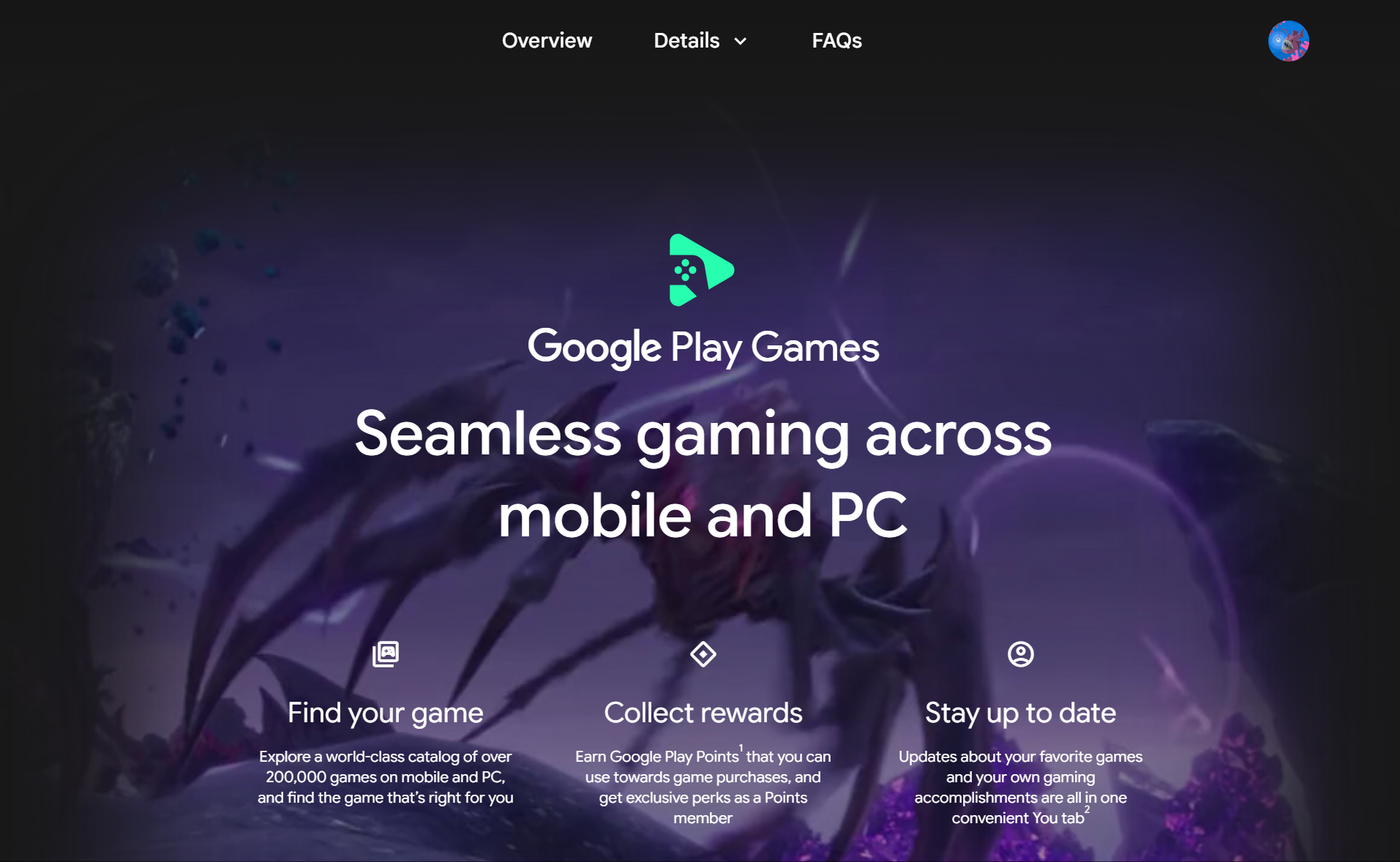
That narrow focus is also its strength. Many emulator users are tired of extra launchers, ads, bundled tools, and confusing settings. Over the past few years, Google Play Games for PC has expanded to roughly a thousand supported titles while keeping that simpler gaming-first approach. The latest version also supports displays up to 3660x1440 at 175hz. Google Play Games for PC avoids much of that.
Comes from Google, which may feel safer for users who dislike unknown emulator installers.
Provides a cleaner experience than many third-party emulator launchers.
Supports progress sync between mobile and PC for supported games.
Connects with Google Play profiles, achievements, and Play Points.
Works well for casual users who only care about supported games.
Does not require users to manage a full Android desktop environment.
Not a full traditional Android emulator.
Does not support every Android game.
Does not generally run android apps like a normal emulator.
Is not meant to install apps outside the supported catalog.
Lacks advanced emulator controls and broader gaming features found in full-featured emulator tools.
Not suitable for multi-account workflows, app testing, or Android development.
Casual gamers who want an official Google option.
Users who mainly want to play Android games on PC without tweaking a full emulator environment.
Players who care more about simplicity than emulator flexibility.
Users who dislike cluttered third-party emulator launchers.
Google Play Games for PC is simple, but that is the point. It is not for power users. It is for players who want a clean route from Android gaming to PC gaming.
Anbox Cloud sits at the opposite end of the market from Google Play Games for PC.
It is not made for someone who wants to open a game after dinner. It is a cloud Android platform from Canonical, built to run Android remotely in cloud containers at scale and stream the session back to a local device.
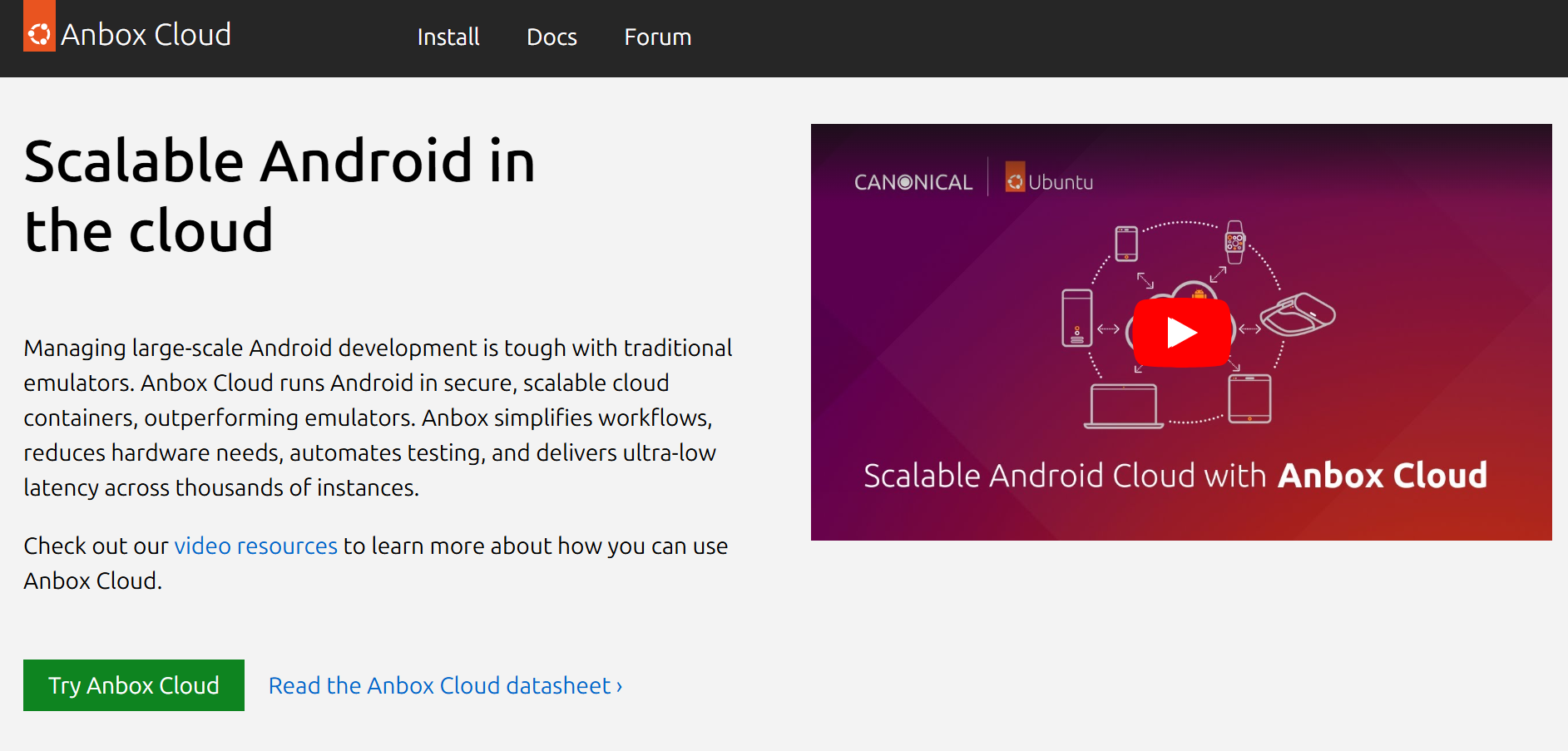
That makes it relevant for development teams, QA teams, cloud gaming providers, automation teams, and companies that need many Android instances running in parallel.
Anbox Cloud supports cloud deployment, CI/CD integration, GPU workloads, Android app streaming, and the Android version you need, including 12, 13, 14, and 15 depending on the deployment.
Built for running Android at scale in cloud environments, including virtual device style setups for testing and deployment.
Supports large numbers of Android instances in parallel.
Fits testing, development, streaming, and automation workflows, with app running checks across cloud instances.
Can connect with CI/CD pipelines.
Supports GPU workloads for heavier rendering or gaming scenarios.
Works with public and private cloud infrastructure.
Supports both ARM and x86 deployment needs; some alternatives such as MuMu Player emphasize Android 12 for broader compatibility, while Anbox Cloud focuses on scalable deployment.
Not beginner-friendly.
Requires technical knowledge for setup, deployment, and maintenance.
Can become expensive for long-running workloads.
Depends heavily on network quality.
Cloud streaming may bring delay, compression, or interruptions.
Too much for casual gaming or simple Android app use.
Enterprise Android testing.
QA automation.
Android app streaming.
Cloud gaming infrastructure.
Automotive Android development.
Companies that need scalable Android workloads.
Technical teams that already understand cloud infrastructure.
Anbox Cloud is not a casual emulator. It is infrastructure. For the right company, that is exactly why it is useful.
Bliss OS is not a normal app player. It is closer to running Android as a full operating system on PC, so on a desktop it can feel more like using an Android phone or tablet than a standard emulator window.
That makes it interesting, but also less beginner-friendly. Users who only want to open one game quickly may not enjoy the setup. Users who like control, customization, and Android-on-PC experiments may find it much more appealing, especially on Linux-style or more technical setups where they do not mind the extra effort.
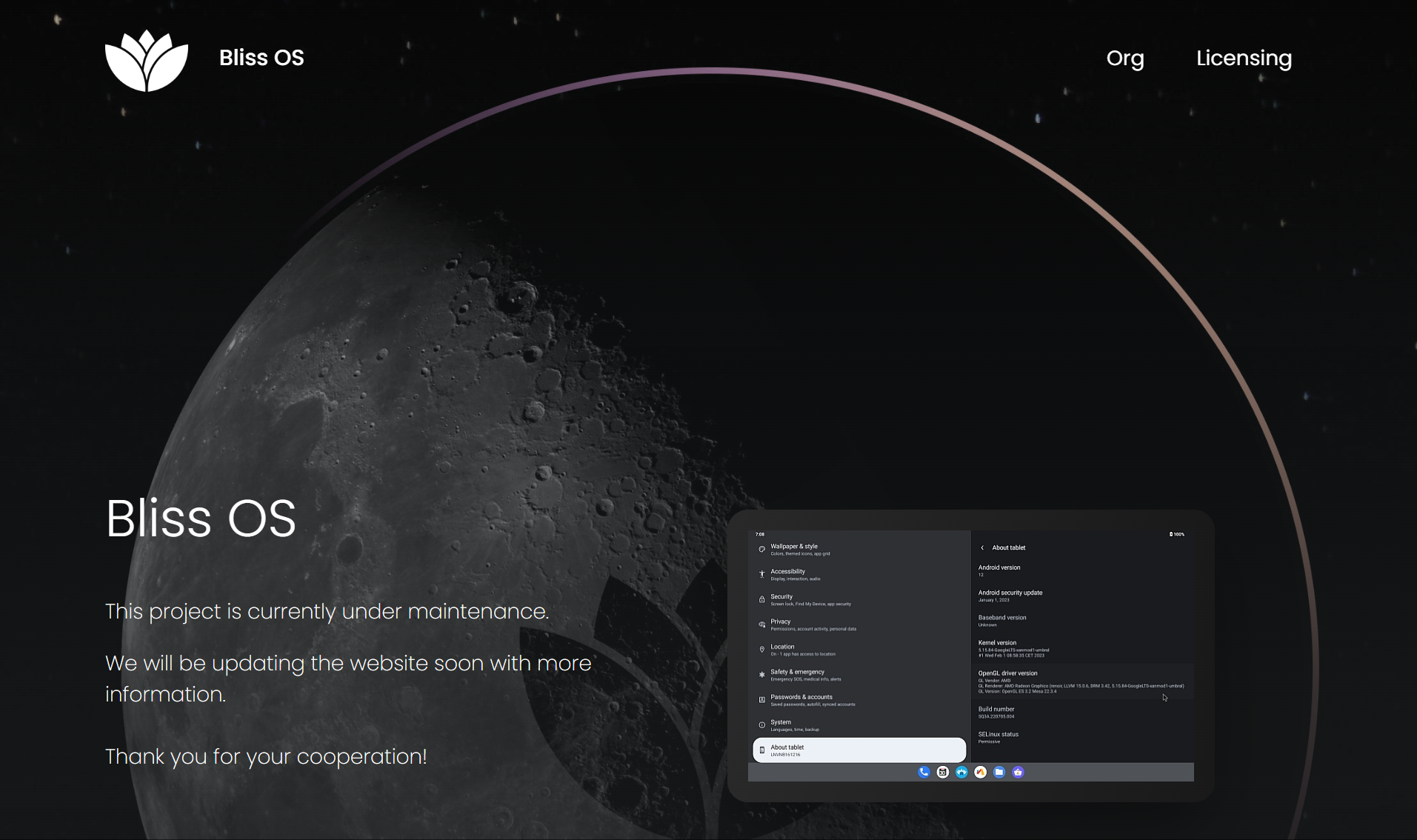
The official Bliss OS site may not always present as much current information as a typical commercial product page. For serious use, it is worth checking the official GitHub, community channels, and recent installation notes before relying on it.
Gives users a fuller Android system experience on PC, with a more customizable home screen and a feel closer to using a real Android device.
Offers more control over the user interface than a simple Android emulator window.
Appeals to users who want Android to behave more like a desktop system.
Useful for customization, testing, and hobby projects.
Can be a better fit than app players for technical users.
Fills a different need from gaming emulators or cloud workflow tools.
Setup takes more work than a normal emulator.
Not ideal for beginners who want quick installation.
Hardware compatibility may vary.
Some apps or games may need extra configuration.
Not built for team permissions, cloud access, or automation at scale.
Current maintenance details should be checked before serious use.
Technical users.
Android hobbyists.
Developers who want more system control.
Users who want Android as a fuller desktop setup.
People who do not mind reading documentation and adjusting settings.
Bliss OS is not the easy path. That does not make it bad. It just means it is better for users who enjoy control more than convenience.
The best Android emulator for PC in 2026 depends less on brand names and more on whether you need to run Android apps, play Android games, or manage cloud workflows.
Choose MoreLogin if your Android work involves multiple environments, repeated sessions, account separation, team access, or automation.
Choose MSI App Player if you want a traditional Android gaming emulator with keyboard, mouse, controller, and high FPS support.
Choose Google Play Games for PC if your games are supported and you want the cleanest official route.
Choose Anbox Cloud if your team needs cloud Android emulation for testing, app streaming, CI/CD, automation, or large-scale deployment.
Choose Bliss OS if you want Android to behave more like a full desktop system.
The best emulators differ because gaming, testing, and operations each require different strengths.
This is where many emulator lists go wrong. They rank tools as if everyone has the same goal. In real use, a gamer, a QA engineer, and a social media team should not choose the same Android setup.
Start with the job, not the tool.
For gaming, check controls, frame rate, supported games, and your PC hardware. MSI App Player is more suitable when you want a classic emulator experience. Google Play Games for PC is better when you only need supported titles and want something official.
For multi-account work, think beyond opening several emulator windows. Each local instance uses CPU, RAM, storage, and graphics resources. It can work for small use, but it becomes harder to manage as the number of environments grows. That is where MoreLogin makes more sense.
For testing and enterprise deployment, local emulators may not scale well enough. Anbox Cloud is built for teams that need Android instances in the cloud, automation, streaming, and CI/CD support. Android Studio is the developer-focused option and is widely considered the safest mainstream choice for emulator-based app testing. Its emulator can simulate different Android versions and screen sizes, incoming calls and text messages, plus device location and network conditions.
For customization, Bliss OS is more interesting than a regular app player. But it takes more patience. It is not the easy path.
When comparing options, check these points first:
Main use case. Gaming, testing, account workflows, and full Android desktop use are different needs.
Local hardware. A local emulator depends on your CPU, RAM, GPU, and storage.
Internet connection. Cloud Android tools reduce local load, but they need stable network access.
App support. Some tools can run Android apps broadly, while others focus on games or specific workflows.
Setup effort. A simple gaming tool and a developer environment do not have the same learning curve; read the setup steps in more detail before choosing.
Long-term use. A tool that feels fine for one app may become painful when you need ten environments.
For low-end PCs, be realistic. The best Android emulator for low end PC is not always the one with the longest feature list. Local emulators still need local resources. A cloud-based option can reduce hardware pressure, but it depends on your internet connection.
Android emulators often ask for deep system access. Treat installation seriously. Not all third-party tools have the same trust record. For example, Nox App Player was compromised in 2021 to distribute malware.
Before installing any emulator, check the basics:
Download only from official sources.
Avoid third-party mirror sites unless you fully trust them.
Read every installer screen before clicking through.
Watch for optional bundles, ads, promoted apps, sponsored recommendations, or extra software.
Use a separate Google account when testing a new emulator.
Avoid unknown APK files.
Check whether the tool is still maintained.
Look for recent documentation, release notes, or official community channels.
An emulator does not make a risky APK safe. It only gives the APK another place to run. Do not use your main account, payment details, or sensitive information inside apps from unclear sources.
This may sound boring, but it saves trouble. A few minutes of checking is better than cleaning up a bad install later.
There is no one-size-fits-all answer here.
MoreLogin Android Emulator is the better fit for cloud Android workflows, multi-account work, team access, and automation. MSI App Player is better for familiar PC gaming. Google Play Games for PC is the clean option for supported Android games. Anbox Cloud is built for enterprise testing and large-scale Android workloads. Bliss OS is for users who want Android as a fuller desktop system.
For one game or one app, a simple local option may be enough. For repeated work, multiple Android environments, and team operations, cloud Android is usually easier to manage.
If you need browser profiles, cloud Android environments, and account management in one place, MoreLogin is a practical starting point.
What is the best Android emulator for PC in 2026?
There is no single best option for everyone. MoreLogin is better for cloud Android workflows and multi-account management. MSI App Player fits traditional PC gaming. Google Play Games for PC works for supported games. Anbox Cloud is better for enterprise testing. Bliss OS is better for a full Android desktop setup.
What is the best Android emulator for low-end PC?
For low-end PCs, cloud-based options can reduce local hardware pressure. For local tools, check RAM, CPU, virtualization support, and the demands of your game or app. Do not choose based only on feature lists.
Is Google Play Games for PC an Android emulator?
Not in the full traditional sense. It is Google’s official option for playing supported Android games on PC. It does not provide full Android app access, APK sideloading, or advanced emulator controls. A developer emulator can also simulate different Android versions and screen sizes, but it is still not the same as testing on a real device or doing final checks on a physical device.
Is Anbox Cloud suitable for personal use?
Usually not. Anbox Cloud is better for enterprise testing, app streaming, automation, cloud gaming infrastructure, and large-scale Android workloads. Personal users may find it too technical and costly.
Is Bliss OS better than a normal Android emulator?
It depends. Bliss OS gives a fuller Android system experience and more customization. A normal Android emulator is easier if you only want to open an app or play a game quickly, especially for touch screen style apps adapted to mouse and keyboard input.
Can I use an Android emulator for multiple accounts?
Yes, but local multi-instance use can become heavy and difficult to manage. Each instance uses local resources. For repeated multi-account workflows, cloud Android environments like MoreLogin are usually easier to organize. Accessibility and larger-screen use can matter too, and emulators can help some users with visual needs, which is relevant when about 2.2 billion people worldwide live with vision impairment.
 EN
EN